

Introduction
HubSpot is an inbound marketing and sales platform that helps companies attract visitors, convert leads, and close customers.
This guide explains how to setup HubSpot for use with Cyclr, as well as how to install a Hubspot V3 Connector.
Setup & Authentication
Overview
Cyclr Partner setup:
- Create an app within your HubSpot developer account.
- Store the Client ID and Client Secret of that app in your Cyclr Partner Console.
Remote Setup in HubSpot – performed by Cyclr Partner
 If you complete this process, your customers won’t be required to create their own HubSpot apps.
 Legacy apps can no longer be created in HubSpot, but existing ones continue to be fully supported and actively maintained by HubSpot. You can find more information here.
Go to your HubSpot developer account and create an app using the HubSpot CLI.
Make a note of the Client ID and Client Secret of your app.
See HubSpot’s documentation on this process.
When creating the app, the config.auth.redirectUrls collection in the src/app/app-hsmeta.json file must include the Callback URL of your Cyclr Partner Console.
Scopes
Scopes are specific access rights that determine what parts of HubSpot data the app can interact with. For instance, an app might need permission to view contacts or to update marketing campaigns. By setting these scopes, you can ensure that the app only gets the access it needs, making it more secure and easier for your customers to understand what the app will do. When your customers authorize an app, they will see a list of these permissions and can decide whether to grant them.
Since October 2024, HubSpot requires you to specify which scopes in an app are “Required” and which are “Optional”. It is essential that the settings on the Cyclr Connector exactly match the settings on the HubSpot app being used. Any mismatch in these details will cause authentication of the Connector to fail.
There are 3 types of scopes:
- Required scopes
- Conditionally required scopes
- Optional scopes
See HubSpot’s documentation on these.
Required Scopes
You should consider which scopes your customers are required to grant. For example, if all your integrations use the Leads endpoints, you should include the corresponding scope in your app’s permissions. This ensures that your app has the necessary access to function correctly and provide the intended features to your users. We recommend setting only a small number of required scopes. If you include a scope as a Required Scope that your customer does not have access to, the Connector authentication process will fail.
Conditionally Required Scopes
These are similar to Required Scopes, the difference here is that you do not need to list these scopes in the Hubspot V3 Connector settings. If you want to include these in the Connector settings, they should be added to the Scopes field.
If you add a scope that your customer does not have access to:
- If you added that scope in the Cyclr Connector settings, the authentication process will fail.
- If you have NOT added that scope in the Cyclr Connector settings the authentication process will succeed.
Optional Scopes
You should also consider which scopes are optional based on the features your customers may use. For example, if only some of your Cyclr integrations need access to the Marketing Events endpoints, you could include the crm.objects.marketing_events.read and crm.objects.marketing_events.write scopes as Optional Scopes.
This way, users can choose to grant these permissions only if they plan to use those specific features, providing flexibility and enhancing security. If you added a scope that your customer does not have access to, these will be ignored and the authentication process will succeed.
Add Scopes
See HubSpot’s documentation on adding scopes to apps.
Hubspot V3 Connector Scopes
By default, the Cyclr Hubspot V3 Connector requests the following scopes when installed:
crm.objects.contacts.readcrm.objects.contacts.writecrm.objects.deals.readfilesoauth
Below is a list of the complete combined scopes required if you were to use all of the Connector Methods that currently exist on the Hubspot V3 Connector. We highly recommend that you use this as a reference and add only the scopes for the Methods your integrations utilize. This ensures your app requests only the necessary permissions, enhancing security and user trust.
communication_preferences.read
communication_preferences.read_write
communication_preferences.write
crm.lists.read
crm.lists.write
crm.objects.companies.write
crm.objects.contacts.read
crm.objects.contacts.write
crm.objects.deals.write
crm.objects.marketing_events.read
crm.objects.marketing_events.write
crm.objects.owners.read
crm.objects.quotes.read
crm.objects.quotes.write
crm.objects.feedback_submissions.read
crm.objects.subscriptions.read
crm.schemas.companies.write
crm.schemas.deals.write
crm.schemas.quotes.read
crm.schemas.subscriptions.read
e-commerce
files
files.ui_hidden.read
sales-email-read
tickets
Permissions
In order to use Connector Methods in the “Products” and “Line Items” Method Categories, the user authenticating the Cyclr Connector must have been assigned a paid Sales Hub seat within HubSpot.
Partner Setup in Cyclr Console
Having created an app within HubSpot to obtain a Client ID and a Client Secret, you can go into your Cyclr Partner Console to store those values for use every time a Hubspot V3 Connector is installed:
- Go to your Cyclr Console.
- Select Connectors > Application Connector Library.
- Use the search box to locate the Hubspot V3 Connector entry.
- Select the Installation User Experience Pencil button.
- Select the Settings tab.
- Enter the following values:
| Property | Description |
|---|---|
| Client ID | The Client ID of the HubSpot app. |
| Client Secret | The Client Secret of the HubSpot app. |
| Scopes | A space separated list of scopes that the HubSpot app needs access to. You need to enable these on the HubSpot app or Connector authentication will fail. By default, Cyclr will request the following scopes: crm.objects.contacts.readcrm.objects.contacts.writecrm.objects.deals.readfilesoauthAny scopes you enter here override these default scopes. |
| Optional Scopes | A space separated list of optional scopes that your HubSpot app needs access to. If you don’t enable these on your HubSpot app, Cyclr won’t request them which may reduce functionality. |
| Disable Custom Field Options? | Set to true to disable the lookup of custom field options. |
- Select Save.
If you leave these values blank, they must be provided each time the Connector is installed.
Cyclr Connector Installation
When installing a Hubspot V3 Connector, the user will need to sign in to HubSpot and then may be presented with a HubSpot “Choose an Account” page if they have access to multiple HubSpot accounts:
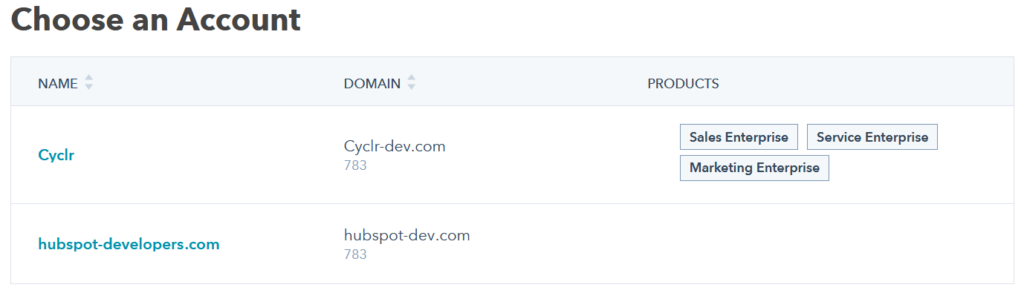
When testing, select your main HubSpot account instead of your Developer Account. To identify the main account, look for the account with items shown under the PRODUCTS heading. In the above screenshot example, the main account has a name of “Cyclr”.